Brand context
Trusted files and public pages can be collected, structured into a draft, and reviewed before use.
Teach DONNA how you work once, set clear boundaries, and give it the context to help keep your real-estate workflows moving.
Real estate AI setup
Setup is about giving DONNA the right context and permissions—not rebuilding your business around another system. The exact capabilities available to you depend on your workspace configuration, integrations, permissions, and connected data.
Choose the account and team capacity that fit your business. Each person who needs their own access, context, permissions, and accountability should have a seat.
Connect the supported communication, calendar, contact, knowledge, and workflow tools that matter to your day-to-day work. A specific connection is confirmed during onboarding; availability depends on the platform, credentials, APIs, and deployment.
Share your market, specialties, working hours, communication preferences, team responsibilities, and the way you prefer work to move from one person or stage to the next.
Bring in the material your team relies on: templates, procedures, transaction checklists, FAQs, preferred vendors, service standards, and other approved reference information.
Decide what DONNA may prepare, what it may complete as a routine low-risk action, what needs your approval, and what it should never do automatically. Start conservatively and expand only when you are comfortable.
Run realistic examples, review the context DONNA uses, confirm recipients and outcomes, and adjust your rules. Add more workflows only after the current setup behaves the way you expect.
Inside the workspace
These product screens show how source collection, human review, identity, integrations, knowledge, automation, privacy, and account controls stay visible during setup.
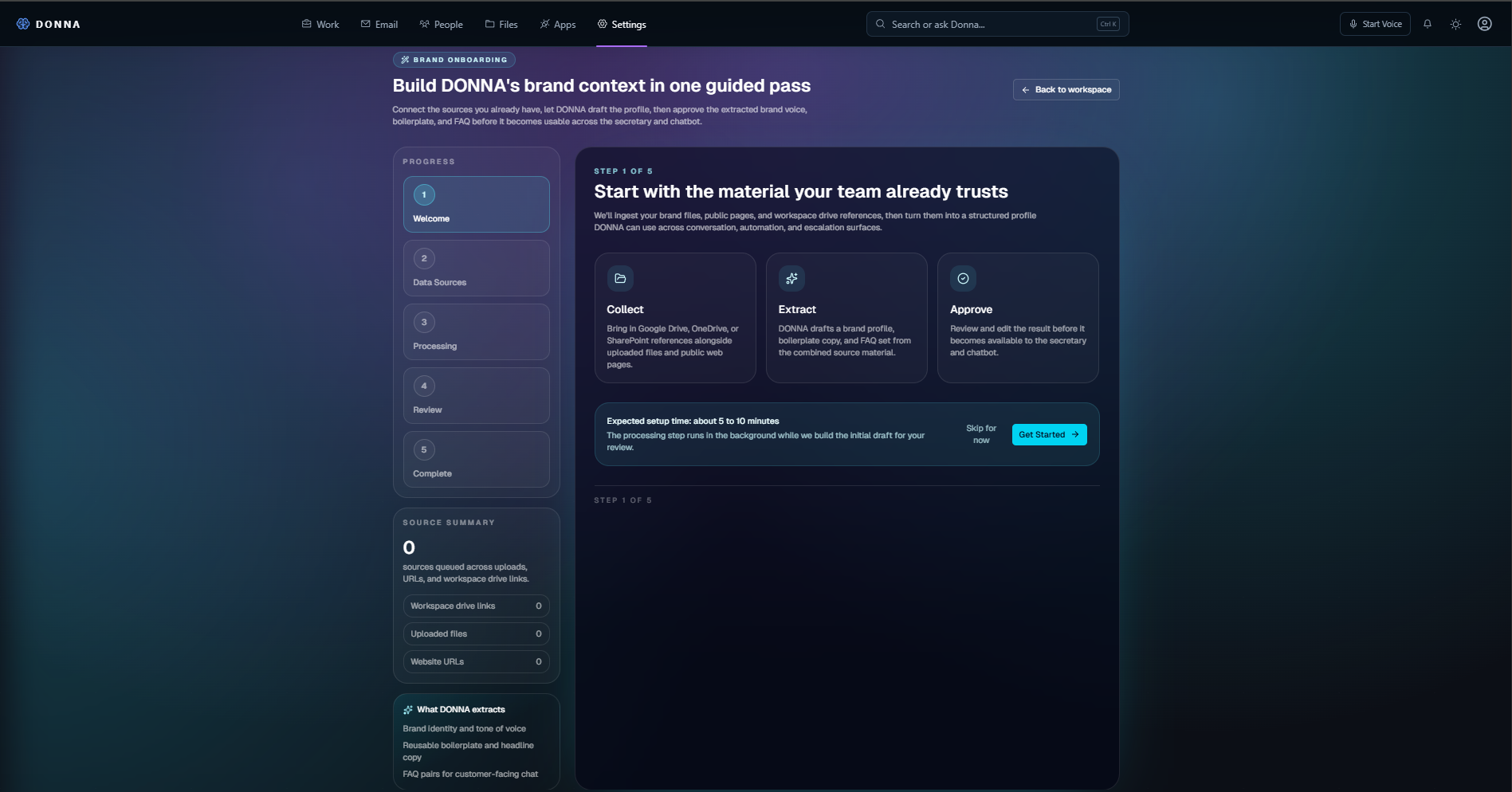
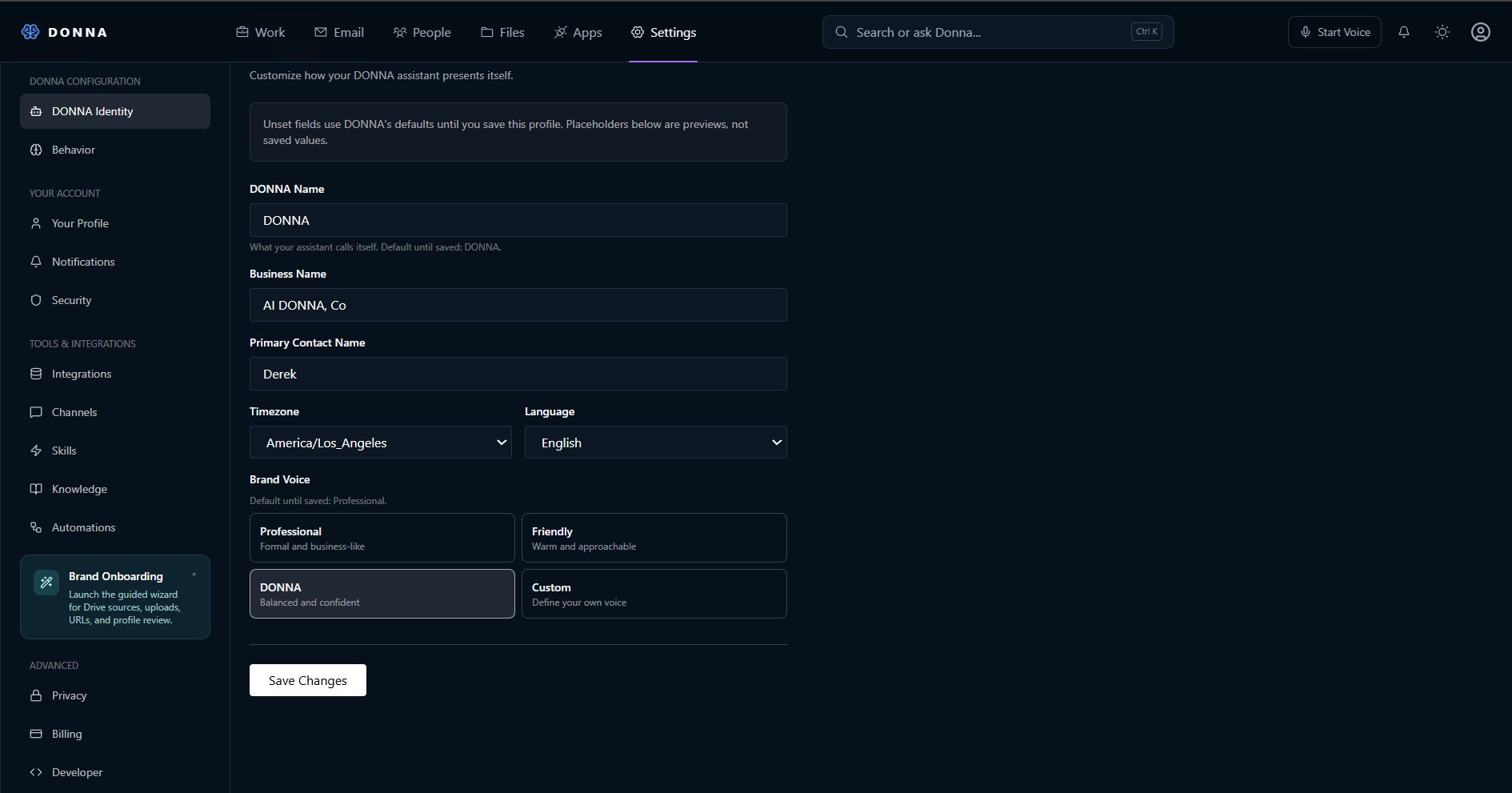
Trusted files and public pages can be collected, structured into a draft, and reviewed before use.
Set the business name, primary contact, timezone, language, and approved brand voice.
Configure available integrations, channels, skills, knowledge sources, and automations.
Keep privacy, security, billing, and other administrative settings visible and separate.
Interface and feature availability can vary by workspace configuration, credentials, permissions, and deployment.
Practical examples
These examples illustrate the outcome of a well-scoped setup. The actions available in a specific workspace depend on its connected systems and approved permissions.
A connected lead or inbox workflow can preserve the contact context, prepare an approved response, and surface the next follow-up instead of relying on memory.
A configured transaction workflow can connect checklist and calendar context so approaching deadlines and missing items are easier to see and act on.
Approved source material, templates, and voice guidance can help drafts stay aligned with the business before a person reviews or sends them.
DONNA prepares drafts, recommendations, or next steps for your approval.
Permit defined, low-risk actions while keeping important decisions with you.
Allow tested, predefined workflows to run and bring exceptions or sensitive situations to you.
The goal: manage the exceptions without having to manage DONNA all day.
The working rhythm
Day one
Give DONNA the approved tools, business context, knowledge, and permissions it needs to help.
Every day
DONNA is designed to monitor authorized workflows, handle permitted routine work, and surface deadlines, responses, approvals, and exceptions.
Every transaction
Use DONNA to help maintain context, follow-ups, outstanding items, and next steps even when the other people in the transaction do not use DONNA.
As DIN grows
The DONNA Intelligence Network is intended to support permissioned referrals, handoffs, and coordination between businesses without unnecessarily exposing private customer information.
Prepare before onboarding
Gather your tools, team roles, business knowledge, permission decisions, and test scenarios before the setup call so the first configuration pass is concrete.
Start with a discovery call so we can confirm the tools and workflows that matter to your business, then build a setup plan around what is actually supported.
Reviewed by the DONNA product team · Last reviewed
Tired of managing fragmented AI assistants, prompts, and coding setups? Get a DONNA, our unified AI operational infrastructure designed to complement or completely replace these individual tools, running your business workflows on autopilot with built-in human-in-the-loop oversight.